
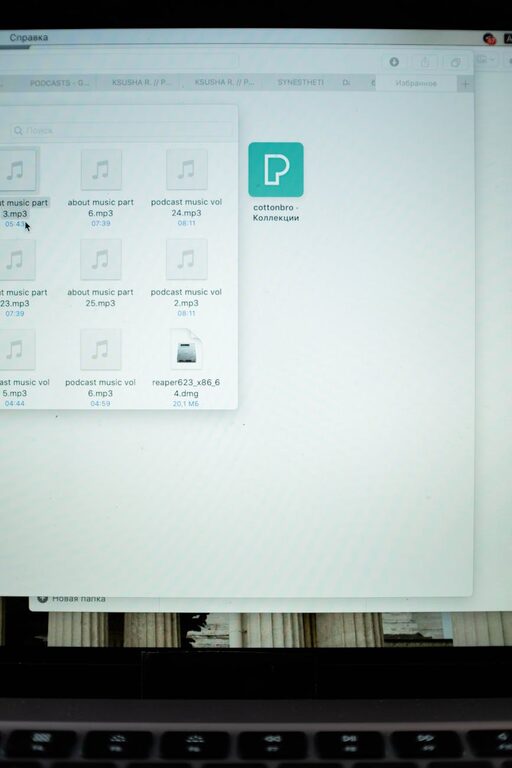
Keeping your computer files organized can save you time, reduce stress, and improve your overall productivity. Whether you work from home, study, or use your computer for personal projects, having a clear file structure helps you find what you need quickly and keeps your digital workspace tidy. In this post, we’ll explore straightforward tips for organizing files on your computer effectively.
Why Organize Your Files?
Before diving into tips, it’s helpful to understand why file organization matters:
– Saves time: You won’t waste minutes searching for documents.
– Enhances productivity: A tidy workspace promotes focus and efficiency.
– Prevents data loss: Proper organization can reduce accidental deletion or overwriting.
– Makes backups easier: Well-organized files are simpler to back up and restore.
With these benefits in mind, here are some practical steps to get started.
1. Start with a Clear Folder Structure
A logical folder structure is the foundation for good file organization.
Create Broad Categories
Begin by creating main folders based on big categories that make sense to you. Examples might include:
– Work
– Personal
– Photos
– Projects
– Finances
Use Subfolders for Specifics
Within each main folder, use subfolders to break down files into smaller groups. For example, inside “Work,” you could have folders for:
– Reports
– Presentations
– Meeting Notes
This hierarchy helps keep files organized without overwhelming any single folder.
2. Use Descriptive and Consistent File Names
File names should be clear and consistent so you understand the contents without opening the file.
Be Specific
Instead of naming a file “Document1,” give it a descriptive name like “MarketingReport_Q2_2024.”
Include Dates When Relevant
Adding dates in formats like YYYY-MM-DD (e.g., 2024-06-15) helps keep files in chronological order.
Avoid Spaces and Special Characters
Use underscores or dashes to separate words (e.g., Project_Plan_2024) for better compatibility across systems.
3. Regularly Delete or Archive Unneeded Files
Keeping old or unnecessary files can clutter your computer.
Delete What You Don’t Need
Go through your files periodically and delete duplicates or outdated items.
Archive Infrequently Used Files
For files you want to keep but rarely access, move them to an archive folder or external storage to reduce clutter.
4. Use Cloud Storage and Backup Solutions
Backing up your files protects against data loss and lets you access files from multiple devices.
Choose a Cloud Provider
Popular options include Google Drive, Dropbox, OneDrive, and iCloud. These services also allow you to share files easily.
Set Up Automatic Backups
Use built-in tools or third-party software to regularly back up your data without manual effort.
5. Utilize Search and Tagging Features
Modern operating systems offer search tools to locate files quickly.
Add Tags or Keywords
Some systems let you tag files with keywords for faster retrieval. This is helpful when a file fits multiple categories.
Index Your Files
Ensure your files are indexed in your OS for efficient search performance.
6. Keep Your Desktop Clean
The desktop is often the first thing you see and can become cluttered fast.
Use the Desktop for Current Work Only
Keep only files and shortcuts related to your current projects on the desktop.
Move Other Files to Proper Folders
Regularly clear your desktop by moving files into the right folders.
7. Use File Management Tools
Several apps and tools can help organize your files automatically.
File Sorting Utilities
Tools like CCleaner or Hazel (for Mac) can sort, rename, and clean files based on rules you set.
Duplicate Finders
Use software to locate and remove duplicate files that waste disk space.
8. Develop a Routine
Good habits keep your files organized over the long term.
Set Weekly or Monthly Reviews
Spend a few minutes reviewing your files to update folders, delete unnecessary files, and back up.
Stick to Your Naming and Organizing Rules
Consistency is key to ensuring your system stays usable.
—
Final Thoughts
Organizing files on your computer doesn’t have to be overwhelming. Small, regular steps—like creating a clear folder hierarchy, using meaningful file names, cleaning up clutter, and backing up your data—can make a big difference. The payoff is a more efficient, stress-free digital workspace that helps you focus on what matters most.
Try implementing these tips one at a time and tailor them to your personal or work style. Happy organizing!